

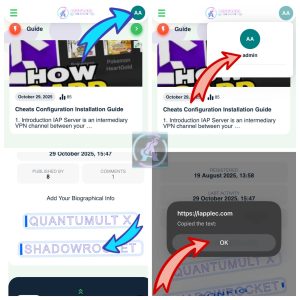
Instructions for installing configuration into Shadowrocket
After successfully registering an account and service package on iAppleC. Go to account -> Press Shadowrocket to access Shadowrocket
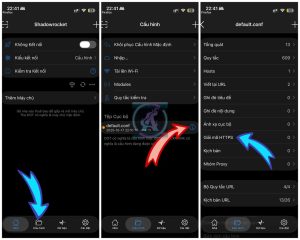
After opening the Shadownrocket application, go to the Configuration tab (at the bottom of the screen) then click on default.conf (note: do not click on the circled i) and follow the steps in the following images:
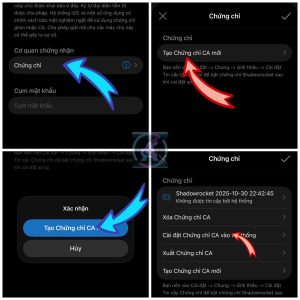
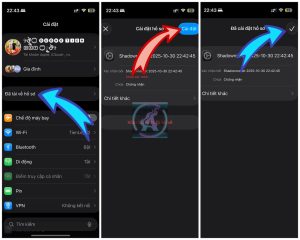
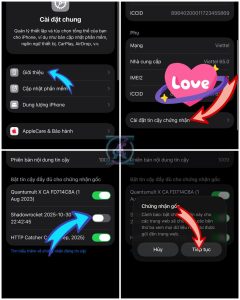
After completing all the steps in the image from left to right, from top to bottom, you have completed the installation and trust of the CA certificate for Shadownrocket.
Now go back to the Shadownrocket application and you will see the certificate displayed, now click on the tick mark in the right corner then turn on HTTPS Decryption and finally click on the tick mark in the right corner.
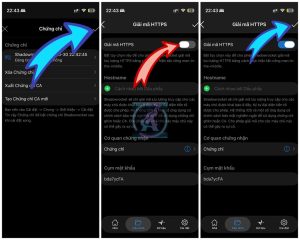
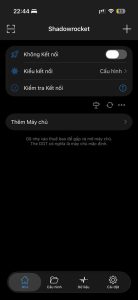
iAppleC Module has been automatically added to Modules. Now go back to the Home tab, turn on the connect button in the upper right corner of the screen, if it is your first time using Shadowrocket it will ask to install VPN, select OK -> Allow -> enter password -> then go back to Shadowrocket turn on the connect button again and select Connect.
 English
  Vietnamese